Steam Deck TV Setup Fixes
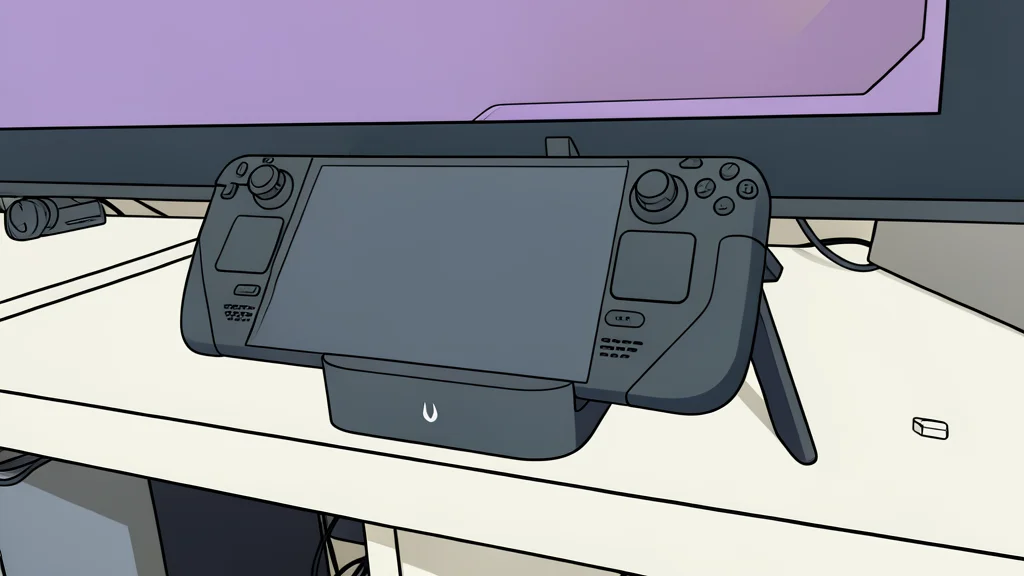
A simple setting change turns a handheld into a smooth TV console, fixing blurry images and controller mix-ups.
Many gamers are turning to the Steam Deck to replace traditional consoles, seeking a cheaper entry point into local multiplayer and indie titles. However, connecting the device to a television is not as straightforward as plugging in a PlayStation or Xbox. Without specific configuration changes, the experience can be frustrating, with blurry visuals and confusing player assignments that disrupt couch co-op sessions.
The core issue stems from how the handheld’s operating system prioritizes inputs and handles video output. By default, the built-in controls are locked as Player 1, leaving external controllers as secondary options. Additionally, forcing the screen to render at high resolutions can overwhelm the hardware. XDA Developers notes that a few targeted adjustments can resolve these friction points, turning the device into a reliable family entertainment hub.
Controller Priority Needs Adjustment
When you dock the Steam Deck, the system inherently treats its physical buttons as the primary input device. This hard-coded priority means that any external Bluetooth or wireless controllers you pair are automatically assigned to Player 2 or higher. For local multiplayer games, this is a significant trade-off, as the person holding the handheld becomes Player 1, while friends on the couch are stuck with lower-priority inputs or ignored entirely by legacy games.
To fix this, you can enable a feature that reorders the controller stack. By accessing the quick menu and selecting the option to automatically reorder controllers, the system will prioritize external devices when a dock is detected. This ensures that wireless controllers take the Player 1 spot, allowing the handheld to function as a secondary input or be used for navigation without hijacking the main gameplay role.
Resolution Settings Impact Performance
The second major hurdle is the mismatch between the handheld’s native 800p display and a 4K television. If you leave the settings at default, the TV stretches the low-resolution image, resulting in soft, muddy text and blurry textures. Conversely, if you force the device to render natively at 4K, the low-power processor struggles to keep up, leading to severe frame drops and overheating. This creates a catch-22 where you either sacrifice visual clarity or performance.
The solution lies in using a per-game resolution override combined with hardware-accelerated upscaling. By setting the game resolution to 1080p and enabling FSR, the device renders the game at a manageable full HD resolution. It then uses efficient spatial upscaling to output a sharp 4K signal to the TV. This balances crisp visuals with stable performance, preventing the hardware from melting under the load of native 4K rendering.
Choosing The Right Dock
Hardware choices also play a role in the overall experience. A basic USB-C cable is often insufficient for a stable console-like setup. Investing in a dock with an Ethernet port and HDMI 2.0 support is crucial. Ethernet provides a more stable connection for online features, while HDMI 2.0 ensures a consistent 4K signal at 60Hz. This setup minimizes the digital handshake issues that can cause flickering or signal loss, making the device feel more like a dedicated appliance than a portable gadget.
While the Steam Deck is not a traditional console, these adjustments bridge the gap. The trade-off requires a bit of initial tinkering, but the result is a versatile system that handles local multiplayer and single-player titles with greater ease. By managing controller priority and resolution scaling, users can avoid the common pitfalls that make the docked experience feel clunky and unpolished.