Turning a Dusty Tablet into a Useful Second Screen
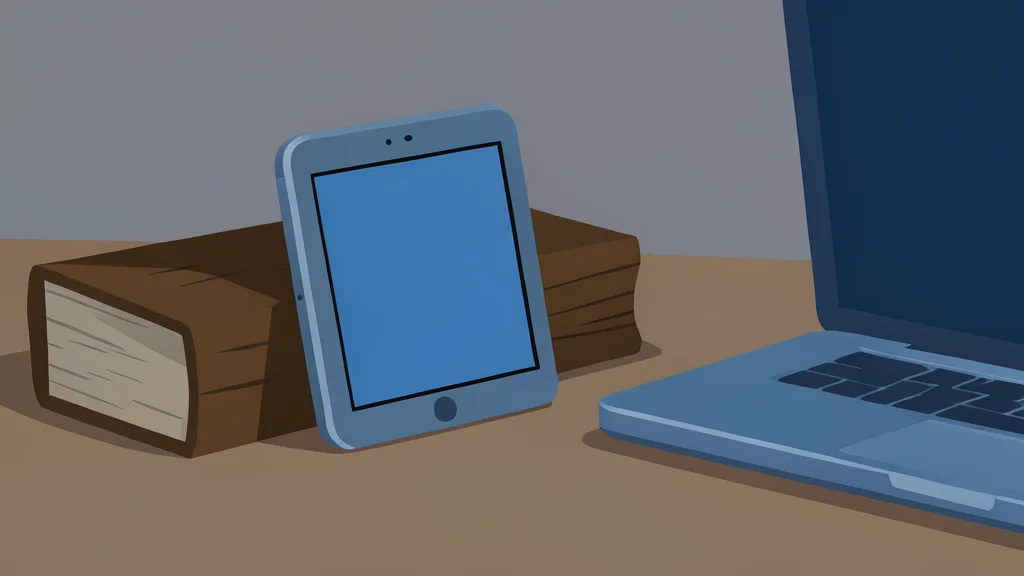
An old Kindle Fire tablet can be revived as a secondary display for a laptop, offering a low-cost way to expand workspace without buying new hardware.
Many households have forgotten tablets gathering dust in drawers. Rather than letting these devices become e-waste, one user found a practical new purpose for a seven-year-old Kindle Fire. By connecting it to a Windows laptop, the tablet now functions as a secondary monitor, extending the desktop for tasks that benefit from extra screen real estate.
This setup does not require expensive professional hardware or complex wiring. Instead, it relies on wireless software that bridges the gap between the tablet and the computer. While the process involves some initial setup, the result is a functional, albeit secondary, display that keeps old technology in circulation.
Software bridges the hardware gap
You cannot simply plug a tablet into a laptop and expect it to work as a monitor. The connection requires specific driver software on the computer and a companion app on the tablet. In this case, the user selected Spacedesk, a tool that creates a wireless link between the two devices. This approach avoids the need for physical cables, which is particularly useful for tablets that lack direct video output ports.
Before connecting the devices, the tablet needed a full charge and a factory reset to clear out old settings that might cause conflicts. The user also enabled developer options to ensure the system could accept the necessary permissions. According to reports from XDA Developers, this preparation step is crucial for a stable connection, as residual data from previous uses can interfere with the new display drivers.
Adjusting resolution for readability
Once connected, the immediate challenge is visual comfort. A 10-inch screen is too small to display a full-resolution desktop comfortably. Text and icons appear tiny and difficult to read. To solve this, the user adjusted the scaling settings in Windows to 150%. This enlargement makes the interface usable, though it does reduce the amount of desktop visible on the secondary screen.
There is a trade-off here: higher scaling improves readability but limits the number of windows you can open simultaneously. The user also locked the tablet in landscape mode to prevent accidental rotation. This ensures the virtual monitor remains stable, allowing for touch controls like tapping and swiping to interact with the extended desktop.
Physical placement and stability
The final hurdle is positioning the tablet securely next to the primary monitor. Without a dedicated stand, the device can be unstable. The user improvised a solution by propping the tablet against a small picture frame. This keeps the screen at a usable angle and prevents it from sliding off the desk during use.
This setup is best suited for stationary use on a home network. Wireless connections can be less reliable if the device moves far from the router or if there is significant interference. However, for a fixed desk setup, it provides a cost-effective way to repurpose an aging device into a functional part of the workflow.