Making Smartphones Usable for Older Adults
Standard operating systems hide essential controls, but simple adjustments can transform a confusing touchscreen into a practical daily tool.
For many older adults, the leap from a traditional flip phone to a modern smartphone feels less like an upgrade and more like a barrier. The smaller text, complex gestures, and crowded home screens can make basic tasks like texting or taking a photo feel overwhelming. However, the hardware itself is not the problem. The issue lies in the default settings, which are designed for speed and density rather than clarity and simplicity. As reported by GN technics/mobile (en-US), the good news is that both major mobile platforms offer built-in accessibility features that, once enabled, can significantly reduce this friction.
The core of the solution is not adding new software, but unlocking the existing tools already present in the device. Whether using an Apple iPhone or an Android phone, users can enlarge text, simplify the interface, and add voice controls. These adjustments do not require technical expertise to set up, but they do require knowing where to look. The goal is to create a digital environment that matches the user’s needs, ensuring that the device serves the person, not the other way around.
Built-in tools simplify the interface
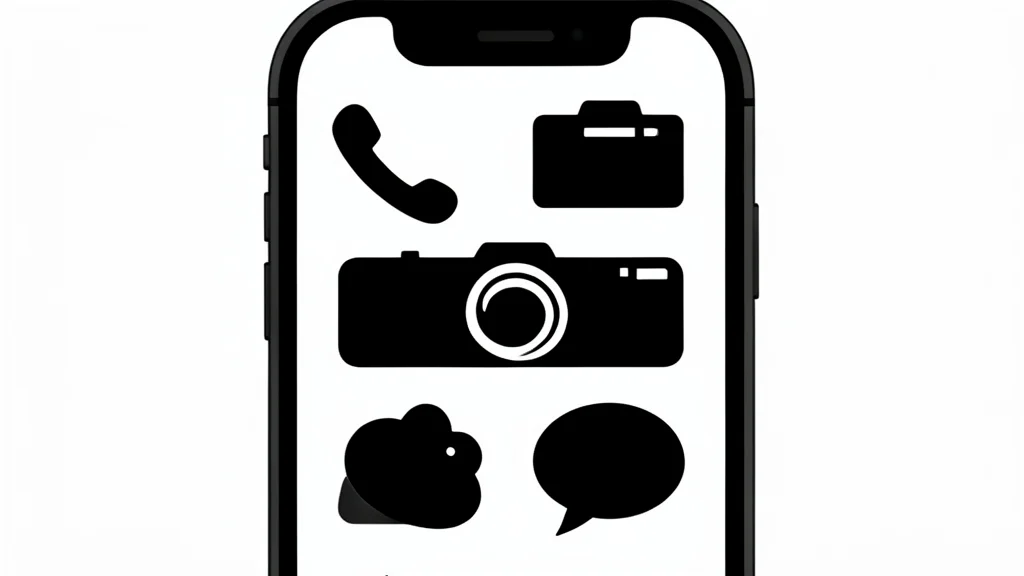
Apple devices offer a feature called Assistive Access, which is particularly useful for those transitioning from simpler phones. This mode creates a clean layout with large buttons and fewer apps, effectively removing the clutter that often causes accidental taps. It can be locked with a passcode to prevent accidental changes, providing a stable and predictable environment. For users who prefer to hear what is happening on the screen, VoiceOver can read text aloud, while Display Zoom allows for a more permanent enlargement of icons and menus.
On Android devices, such as Google Pixels or Samsung Galaxies, the approach is slightly different but equally effective. Users can switch from gesture-based navigation to traditional on-screen buttons, which many find more intuitive. Samsung’s Easy Mode is a standout feature here, as it not only enlarges text and icons but also adds a slight delay to reduce accidental taps. This delay is a small but critical trade-off; it makes the phone feel slightly less responsive to quick swipes, but it greatly improves precision for users with slower motor skills or tremors.
Voice control replaces physical taps
Another powerful option across all platforms is voice control. Instead of hunting for small icons, users can simply speak commands to open apps, dictate messages, or adjust settings. This removes the physical barrier of tapping entirely. For those with hearing difficulties, features like Live Caption on Android can add subtitles to media, and Sound Amplifier can make soft sounds louder. These tools transform the smartphone from a visual device into a multimodal one, accommodating different sensory needs without requiring any external hardware.
The trade-off with voice control is privacy and context. Speaking commands in a public space may feel intrusive, and the accuracy of voice recognition can vary depending on background noise. Additionally, users must learn a new set of commands, which can be a steep learning curve for those unfamiliar with the specific phrasing required by the operating system. However, for many, the ability to operate a phone by speaking is far less daunting than navigating a complex touchscreen.
Customizing the home screen layout
Beyond system settings, manual curation of the home screen is essential. Removing unused apps and placing only the most frequently used ones, such as phone, messages, and photos, on the first screen reduces cognitive load. A simple, uncluttered wallpaper and a louder ringtone volume further enhance usability. Increasing the screen timeout ensures the display stays on long enough for the user to complete their task without the screen going dark, which is a common source of frustration for older users.
The ultimate goal is not to master every feature of the smartphone, but to make the essential functions accessible and reliable. By combining built-in accessibility settings with a simplified home screen, the device becomes a practical tool rather than a source of stress. This approach respects the user’s autonomy while providing the support they need to stay connected.