Turning a Code Editor into a Personal Productivity Hub
A developer shares how Visual Studio Code evolved from a coding tool into a central workspace for writing, planning, and research, reducing the need for multiple applications.
Visual Studio Code is widely recognized as a powerful environment for software development, but for one user, it has become something far broader. What began as a simple experiment to keep article drafts close to coding projects has transformed into a complete productivity system. The editor now serves as a writing desk, a planning board, and a central hub for daily tasks, effectively replacing several dedicated applications in a single interface.
This shift was not immediate. It developed gradually as the user realized that keeping all project-related materials in one place reduced the mental load of switching between different software. By consolidating drafts, research notes, and technical requirements into a unified workspace, the workflow became more cohesive. The result is a setup that handles everything from creative brainstorming to technical documentation without leaving the familiar coding environment.
Markdown simplifies document structuring
The core of this new workflow relies heavily on Markdown, a lightweight markup language. Unlike word processors that clutter the screen with formatting toolbars, Markdown allows for clean, text-based document creation. Users can define headings, lists, and links using simple syntax, which keeps the visual focus on the content itself. This approach is particularly effective for managing complex projects where structure and clarity are paramount.
For a client project involving a jewelry website, the user organized all copy, SEO notes, and technical requirements into separate folders within a single workspace. Files such as homepage drafts and product descriptions sit alongside checklists and research materials. This organization allows for quick navigation and ensures that all relevant information is accessible in one place, eliminating the need to hunt for files across different applications.
Split views aid research and comparison
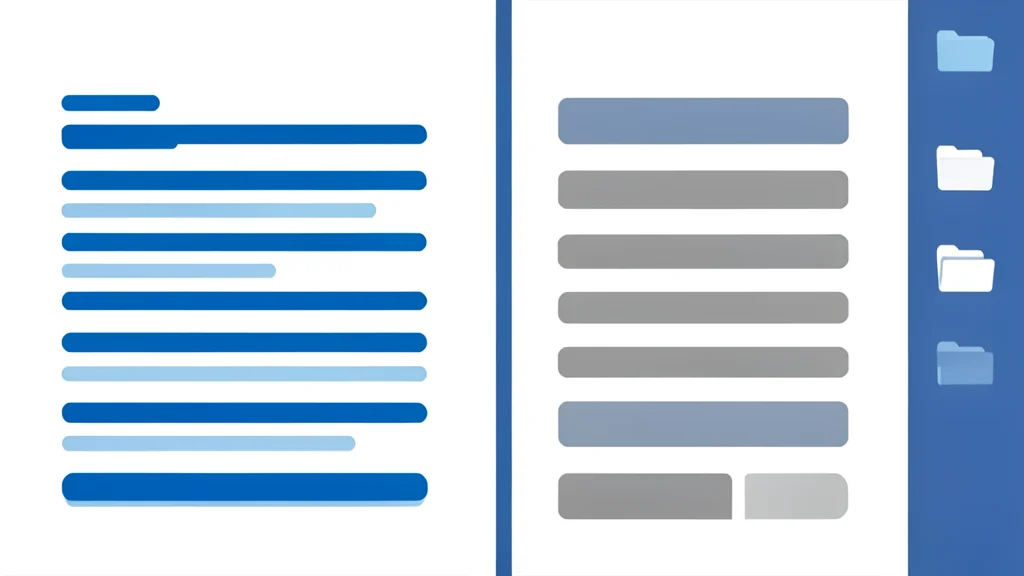
One of the most practical features for this non-coding use case is the split view capability. By opening two or more files side by side, the user can keep a main draft on one screen and reference materials on the other. This allows for real-time comparison, such as checking SEO keywords while writing product descriptions or comparing original copy with a revised version.
Additionally, the global search function accelerates the research process. Instead of scrolling through individual documents, the user can search across the entire project folder to find specific terms or phrases instantly. This is particularly useful when working with large volumes of text, such as multiple product pages or technical specifications, ensuring that no detail is overlooked.
Extensions expand visual planning capabilities
The extensibility of the editor further enhances its utility as a productivity hub. Plugins allow users to add features that go beyond simple text editing. For example, diagramming tools enable the creation of flowcharts and mind maps directly within the editor. This supports brainstorming sessions where visualizing relationships between concepts is essential for structuring complex projects.
Project management extensions also bring Kanban-style boards into the workspace, allowing tasks to be moved between stages like 'ideas,' 'research,' and 'review.' While these tools may not replace dedicated project management software for large teams, they are sufficient for individual workflows. As reported by XDA Developers, this modular approach allows users to tailor the environment to their specific needs, adding only the functionality they require.