Samsung Fold8 Multitasking Requires Hidden Settings
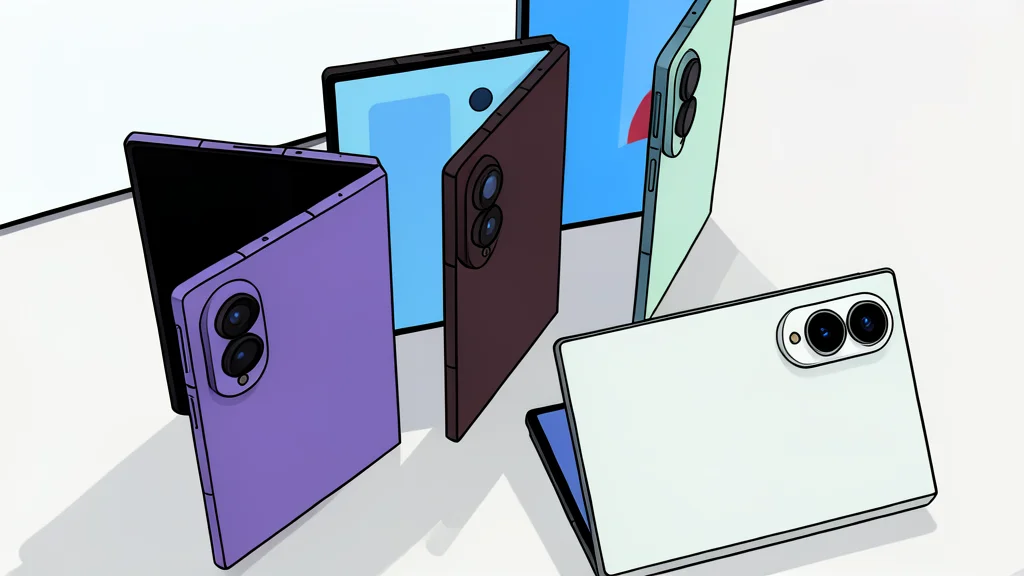
The Galaxy Z Fold8 offers powerful multitasking tools, but many are buried in settings and require specific gestures to unlock.
The Samsung Galaxy Z Fold8 is designed to handle multiple applications simultaneously on its large internal display. Users can run two apps side by side or even three at once, allowing for workflows like checking a map while drafting a message. However, these features are not immediately obvious to new owners, as the interface does not advertise the most efficient methods for window management.
According to a recent analysis by GN technics/mobile (en-US), the device’s potential is often underutilized because key multitasking options are hidden within the system settings. Without enabling specific advanced features, users are limited to basic app switching, missing out on the ability to resize windows, use pop-ups, or create custom app pairs that open with a single tap.
Hidden Settings Unlock Split View
To access the full range of window management tools, users must navigate to the 'Advanced Features' section in the settings menu and enable 'Multi Window' options. Once active, a two-finger swipe from the edge of the screen directly opens split view. Additionally, swiping from the upper-right corner allows an app to become a floating, resizable window that can be moved anywhere on the screen.
The system also includes a taskbar and an Edge Panel that serve as quick-access hubs for frequently used applications. Users can pin apps to these areas and drag them into new window layouts. A particularly useful feature is the ability to save specific app combinations, such as a browser and a notes app, which can then be launched together with a single tap, reducing the friction of manual setup.
Desktop Mode Extends Productivity
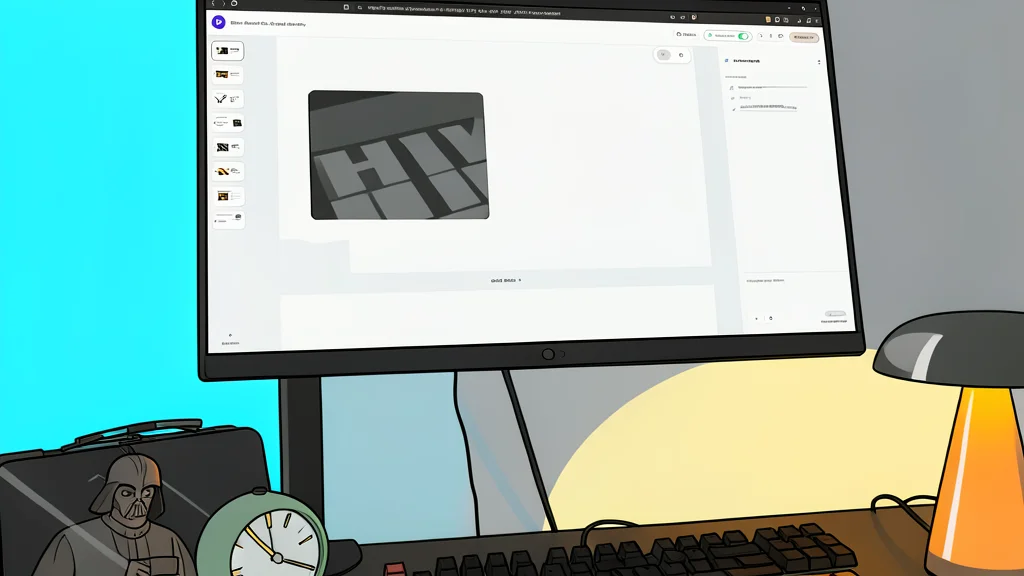
Samsung DeX transforms the Fold8 into a desktop workstation when connected to an external monitor. This mode supports mouse and keyboard input, allowing for freely resizable windows that mimic a traditional computer environment. The phone can display different content than the external screen, enabling a dual-screen workflow that is difficult to achieve with standard smartphones.
The trade-off for this flexibility is a steeper learning curve. While the hardware supports complex multitasking, the software requires deliberate configuration to unlock these capabilities. For users who primarily operate one app at a time, the Fold8 may feel like an overpowered tool. However, for those who frequently switch between tasks or compare information, these hidden features turn the device into a compact, versatile workspace.
Balancing Power and Complexity
The core value of the Fold8 lies in its ability to function as a small computer for on-the-go productivity. The ability to run three apps simultaneously or manage a desktop environment provides genuine utility for professional users. The catch is that this power is not default; it is a feature that must be sought out and mastered, rather than one that is presented upfront.
For the average consumer, the complexity of enabling and managing these windows may outweigh the benefits. But for power users, the hidden depth of the interface offers a level of control that standard slab phones cannot match. The device is not just a larger smartphone; it is a reimagined workstation that requires a different approach to daily use.