Turning the Command Line into a System Control Center
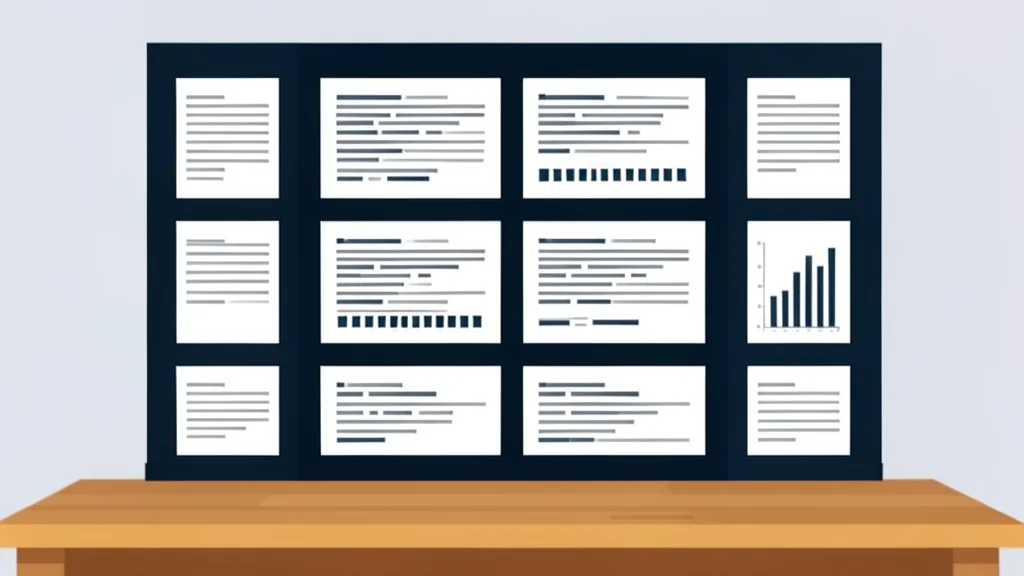
A developer explains how treating the terminal as a persistent dashboard rather than a one-time input tool simplifies monitoring local services and system health on a Mac.
For many users, the terminal remains a place to paste commands from tutorials and then close the window. However, one developer has redefined its role by keeping a single terminal window open at all times to act as a live view of their machine. This approach shifts the focus from executing discrete tasks to continuously monitoring the system’s background activity, allowing for quicker identification of issues like memory leaks or network spikes without juggling multiple applications.
The setup relies on two primary tools: tmux and btop. Tmux allows the user to maintain multiple persistent sessions within a single interface, while btop provides a visual, interactive monitor for system resources. According to XDA Developers, this combination transforms the text-based interface into a functional dashboard that rivals dedicated system monitor applications, offering a clearer picture of what is happening inside the computer at any given moment.
Visualizing system resources effectively
Btop replaces the traditional, text-heavy system monitor with a graphical interface that displays CPU, memory, storage, and network activity in real time. This visual format makes it significantly easier to scan for anomalies, such as a specific application consuming excessive bandwidth. Unlike the built-in top command, which can be difficult to parse quickly, btop allows users to sort processes, search for specific applications, and terminate problematic tasks directly from the interface.
The trade-off for this convenience is a steeper learning curve for navigation. Users must become familiar with specific keyboard shortcuts to move between different panes and windows within the tmux session. While this requires initial practice, the ability to return to a saved layout after closing the laptop lid eliminates the need to rebuild the monitoring environment from scratch each time.
Monitoring local services and containers
Beyond general system health, the terminal serves as a central hub for managing local services like Docker containers and local language models. The developer uses specific commands to check if applications are running and how much resource they are consuming. This is particularly useful for services that do not have obvious status indicators in the system menu, allowing the user to verify that background tasks are functioning correctly without opening separate management interfaces.
The setup also facilitates remote management of a home server. By maintaining a persistent secure connection, the user can check the status of remote storage and media services from their local machine. This integration means that troubleshooting a remote service requires the same simple commands used locally, creating a unified workflow for managing both local and remote infrastructure.
Reducing reliance on graphical apps
Modern terminal applications have evolved to include features that reduce the barrier to entry, such as mouse support, file previews, and full-screen modes. This makes the interface more approachable for users who previously avoided it due to its intimidating appearance. By consolidating monitoring and management tasks into one window, the terminal can replace several specialized graphical applications, streamlining the workflow and reducing the cognitive load of switching between different software environments.