Practical Uses for the Forgotten USB Port on Your Router
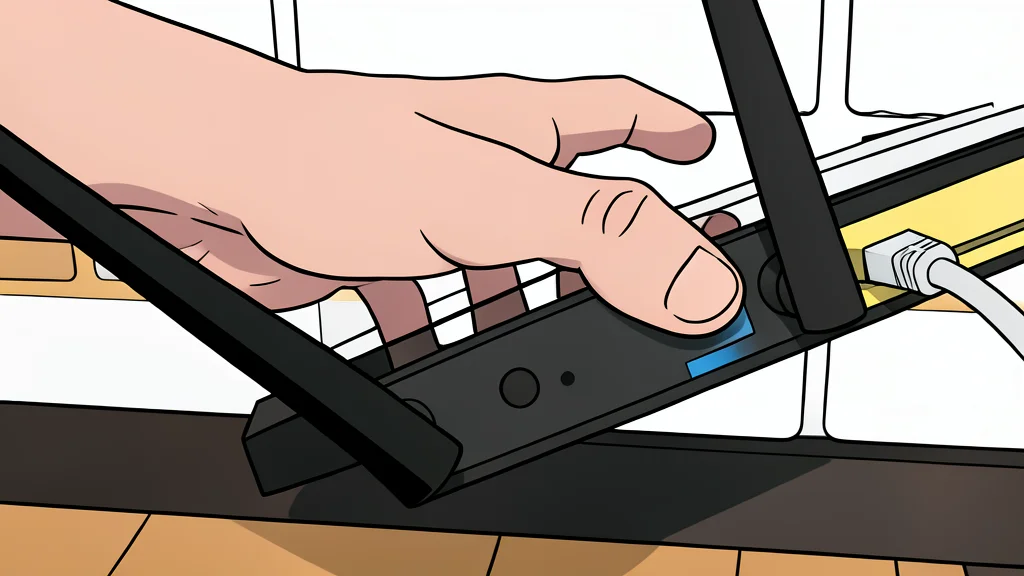
That unused USB slot on the back of your network gear is not just a design choice; it is a functional interface that can expand your home setup.
Most home users ignore the USB port located on the rear panel of their Wi-Fi router. It sits quietly next to the standard Ethernet connections, often left unplugged because its purpose is not immediately obvious. Engadget notes that this component is far more capable than a simple charging point, serving as a gateway to several practical network functions.
Routers are essentially low-power computers equipped with a processor, memory, and a lightweight operating system. This architecture allows them to handle tasks beyond basic signal broadcasting. By utilizing the USB interface, you can transform your central network hub into a multi-function device, provided you are willing to navigate the specific settings required for each feature.
Turning storage into a network drive
The most common application is creating a shared file server. By connecting an external hard drive or solid-state drive to the router and enabling specific settings, you can access that storage from any device on your local network. Manufacturers use various terms for this feature, such as file sharing or media sharing, but the result is the same: a centralized repository for documents and media.
While convenient, this setup has performance limitations. Many routers still rely on older USB standards that cap transfer speeds significantly. Moving large files can take hours rather than minutes. Additionally, routers may struggle to power portable hard drives that require more energy than a simple flash stick. For heavy data usage, a dedicated network-attached storage box offers better stability and speed, though it requires a separate purchase.
Enabling wireless printing for older devices
If you own a printer that lacks built-in Wi-Fi, the router’s USB port can act as a bridge. You can connect the printer directly to the router and send print jobs from any laptop or tablet on the network. This eliminates the need to keep a specific computer turned on solely to manage print queues.
However, compatibility is not guaranteed. This feature often requires installing specific companion software on your personal computer to manage the connection. The setup can be more complex than pairing a modern Wi-Fi printer, and not all router models support this function smoothly. Users should verify their specific hardware capabilities before relying on this method for daily printing tasks.
Using cellular data as backup internet
Some routers support cellular dongles or smartphone tethering via USB. This allows the device to negotiate a 4G or 5G connection, providing an alternative internet source. This is particularly useful when your primary internet service provider experiences an outage. The router can automatically switch to the cellular connection, ensuring that your devices remain online.
There is a trade-off with using a smartphone for this purpose. Unlike a dedicated cellular dongle, a phone must be physically plugged in and active to maintain the connection. You lose the benefit of automatic, hands-free failover if the phone is disconnected or turned off. While it works as a manual backup, it does not offer the seamless redundancy that a dedicated multi-WAN setup provides.